BATCH AUDIO → MIDI · WORKFLOW CHECK
Batch audio to MIDI converter: check every file in the queue.
A useful batch audio to MIDI converter shows one status, one MIDI download, and one failure reason for each uploaded file. The Note Foundry browser workflow currently processes one file per run, so this page makes that boundary explicit and gives you a repeatable queue checklist.
If you need one file converted now, use the audio to MIDI converter. For an MP3-specific run, open the MP3 to MIDI converter; WAV input is covered on the WAV to MIDI page.
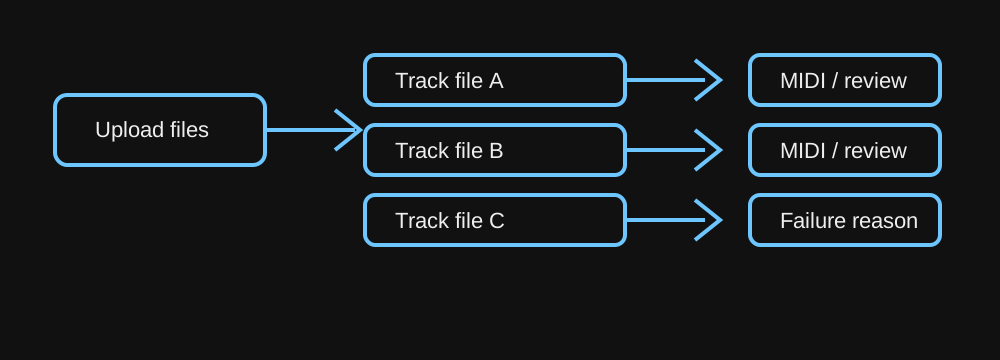
What a real batch queue must show
A queue is more than a multiple-file picker. It should preserve the filename, show whether decoding started, expose a per-file conversion state, and keep the resulting MIDI download attached to the correct input. A failed file should name the failure instead of silently disappearing.
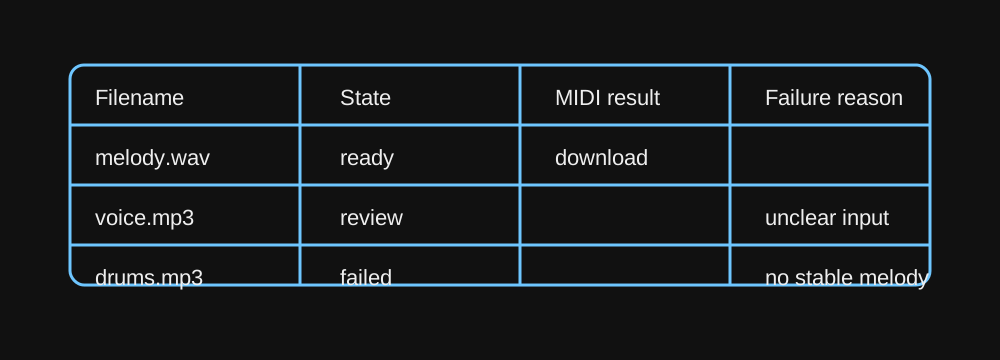
Current single-file boundary
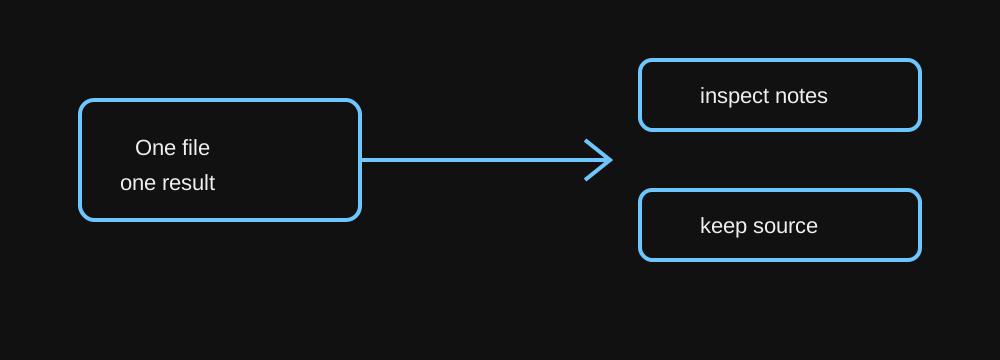
This site is a browser converter for a single selected file per run. That makes an individual result easy to inspect, but it is not a batch queue: there is no multi-file progress list or per-item result panel in this workflow. Keep the source file beside its downloaded MIDI and check the detected notes before moving to the next input.
Questions from conversion work
Is it possible to convert an MP3 to a MIDI file which makes an accurate conversion?
A clear solo melody can produce editable MIDI, but a completed conversion is not proof of universal accuracy. Listen to the source, compare the detected pitches and note boundaries, and keep the original audio for review.
What should I do when one file in a group is unclear?
Keep that file marked for review instead of treating the whole group as successful. Try a clean, single-note passage, then compare its output with the source before using the MIDI in a project.
Use the right page for the input
Start a single conversion with the audio to MIDI converter. Use MP3 to MIDI or WAV to MIDI when you want input-specific guidance.